10 PPT Activities for Online Teaching — 03: Countdown Timer
This post introduces the Countdown Timer from the 10 PPT Activities for Online Teaching series. It works with virtually any timed activity and can be given a start/stop control by adding a trigger.
Before reading this post, I recommend checking out the first post in this series, which covers the goals and key considerations for online teaching activities.
For all online teaching activity resources, visit the Online Teaching Resource Hub, which includes all interactive PowerPoint activities, Google tools, and other useful resources.
What This Countdown Timer Is For
A countdown timer isn’t the most direct teaching tool on its own, but it pairs well with a huge variety of activities — student presentations, recitation drills, group discussion, and more. Plenty of online platforms already have built-in timers (like the ones covered in Teacher Lian Yuren’s post A Collection of Classroom Tools: Classroomscreen), but if you’d rather stay inside PowerPoint without switching apps, this animation is the way to go.
In short, it does one thing:
- Timing
Basically anything time-related works. XD
Below I’ll show you how to build a progress-bar countdown timer from scratch. You can also skip the tutorial and use the template directly (download here; if it won’t open, see this guide). The template includes two style options — pick whichever you like.

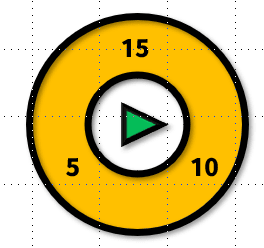
Software: PowerPoint 2019 (compatible with older versions — leave a comment if you run into issues)
Template font: Genseki Gothic H (free font — download from GitHub)
Build It from Scratch: Countdown Timer in PPT
The countdown timer is surprisingly simple to build — you can finish in under five minutes. Since both style options follow the same logic, I’ll walk through the progress bar version here.
Step 01: Draw the Progress Bar Outline
Go to Insert → Shapes and insert a rectangle. The width is up to you — feel free to use a heart shape instead. XD
With the rectangle selected, go to Format → Shape Fill → No Fill, then set Shape Outline to your preferred color. You can also adjust the line weight (I used 6).
Step 02: Draw the Progress Bar Fill
Duplicate the rectangle you just drew. This time, go to Format → Shape Fill and choose your fill color. Set Shape Outline to No Outline.
Overlap the fill bar on top of the outline. Select the outline, then go to Format → Bring Forward so the outline sits on top of the fill.
Step 03: Add the Progress Bar Animation
We want the progress bar to gradually disappear, creating the sense of time running out — so we’ll use an Exit animation. (If you need a refresher on animation types, see the first post in this series.)
Select the fill bar: Animations → Add Animation → Exit: Wipe.
You’ll probably notice the wipe direction isn’t what you want. No worries.
Click the fill bar again to reveal the Effect Options button, then select From Left.
Step 04: Set the Countdown Duration
That’s basically it! Add any decorative elements you like.
One thing left: how do you change the countdown length?
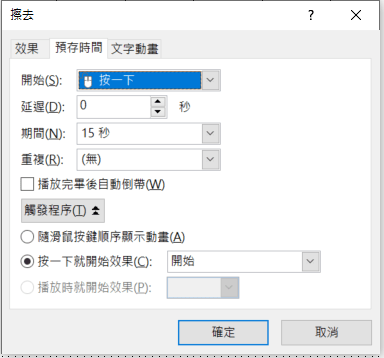
Open the Animation Pane, right-click the progress bar animation, and go to Timing.
In the Duration field, type the time you want for the countdown. Done!
Extra: Adding a Start/Stop Control
If you want a button to start and stop the timer (like in my example), use the Trigger feature introduced in 10 PPT Activities for Online Teaching — 01: Multiple Choice.
You can also add text and sound effects when time runs out — even a ticking clock sound during the countdown to build tension. All of these make the timer much more effective as a classroom cue.
Using the Template: Countdown Timer in PPT
Download the template below (if it won’t open, see this guide):
Template_Countdown Timer Download
The template has two slides — the only difference is the visual style, and the second one also shows the time remaining. XD
There’s only one thing to change: open Animations → Animation Pane, right-click the progress bar animation, go to Timing, and type your desired countdown duration in the Duration field. That’s it!
As I mentioned, the countdown timer isn’t a standalone teaching activity — but it plays well with almost everything else: group discussion, team games, reading quizzes, speaking practice, exams… even cooking instant noodles. (?)
Hope this was helpful! If you have questions or there’s an activity you’d like to see, feel free to leave a comment.
For all PowerPoint activities in the Online Teaching series, see:

Thanks again, and wishing everyone smooth sailing with online teaching!
Thanks for reading :D
If you enjoyed this post, feel free to click the coffee button in the lower right to support us and give Lottery a can 🐾
Comments