10 PPT Activities for Online Teaching — 09 Guess It
This post covers the Guess It activity from the 10 PPT Activities for Online Teaching series — a mask effect creates a spotlight that roams the screen, letting students glimpse only a small portion of the hidden image or text and guess what it is.
Before diving in, I’d recommend reading the first post in this series, which covers the goals and key considerations for online teaching activities.
For all online teaching activity resources, visit the Online Teaching Resource Hub — interactive PowerPoints, Google tools, useful apps, and more.
What This Activity Is For
This one uses a simple masking technique to create a roaming “spotlight” effect — students can only see a small window of what’s on screen at any time, and their job is to guess what the full image or text is.
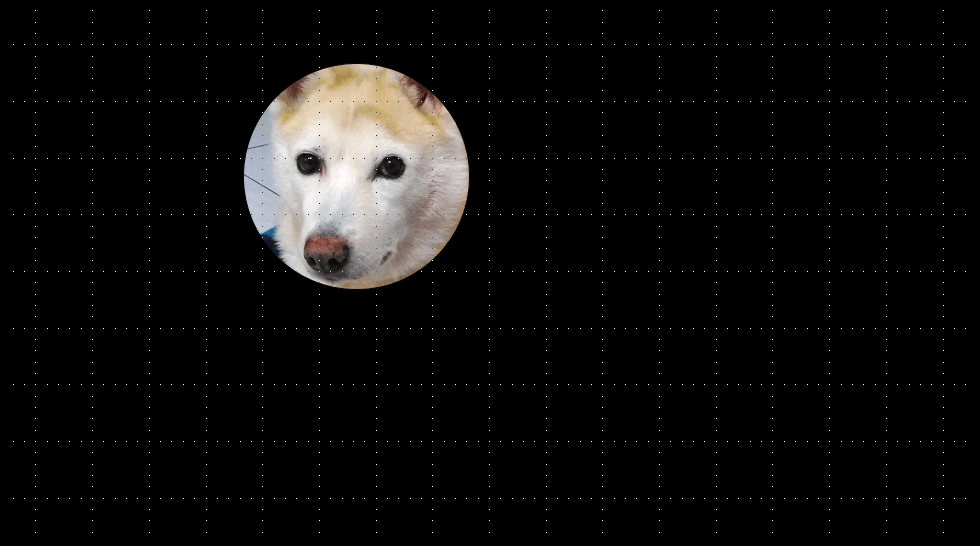
You can also use it in text mode — put a passage behind the mask and have students guess what the text says XD Can you tell what this one is?
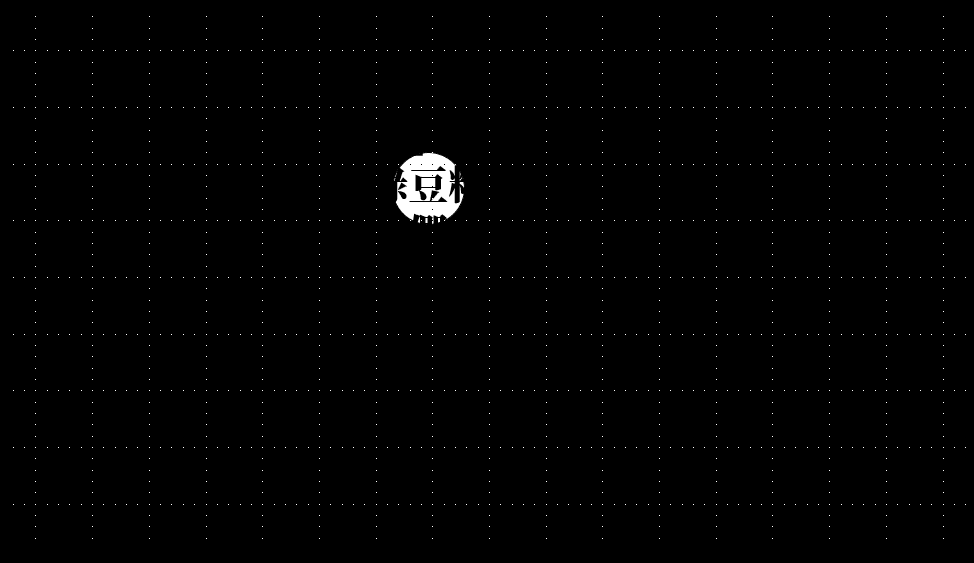
Instructions below show you how to customize the template (click here to download — if it won’t open after downloading, see this troubleshooting guide).
Requirements:
Software: PowerPoint 2019 (this activity is compatible with older versions of PowerPoint — feel free to leave a comment if you run into issues)
Template font: Source Han Serif Heavy (free font, download here)
Using the Template: Guess It in PPT
Download the file below first (if it won’t open, see this guide):
Once downloaded, you’ll see two slides — the only difference is what’s hidden behind the mask (image vs. text).
Open the Selection Pane (click here for instructions — go to Home → Select → Selection Pane). Hide the mask layer first, then place your image or text where you want it.
When you’re done, make sure all elements in the Selection Pane are set to visible. That’s it!
Hope this is helpful!
Honestly, I’m running low on ideas, so I figured I’d share this smaller activity too XD
The final entry in the series will be a more elaborate mini-game — stay tuned!
If you have any questions, or there’s an activity type you’d love to see, feel free to leave a comment anytime!
For all PowerPoint activities in the online teaching series, see the latest post in the series.
Thanks again — wishing everyone smooth and enjoyable online teaching!
Thanks for reading :D
If you enjoyed this post, feel free to click the coffee button in the lower right to support us and give Lottery a can 🐾
Comments