10 PPT Activities for Online Teaching (7): Monopoly [Web Version Live 2025/11/24!]
This post covers the Monopoly activity from the '10 PPT Activities for Online Teaching' series — a fun, comprehensive game that combines a spin wheel for movement with Chance and Community Chest cards.
· 7 min read
Before diving in, I’d recommend reading the first post in this series, which covers the overall goals and things to keep in mind for online teaching activities.
For all online teaching activity content, visit the Online Teaching Resource Hub, which includes all interactive PowerPoint templates, Google tools, and other useful resources.
[Update Log]
2025/11/24
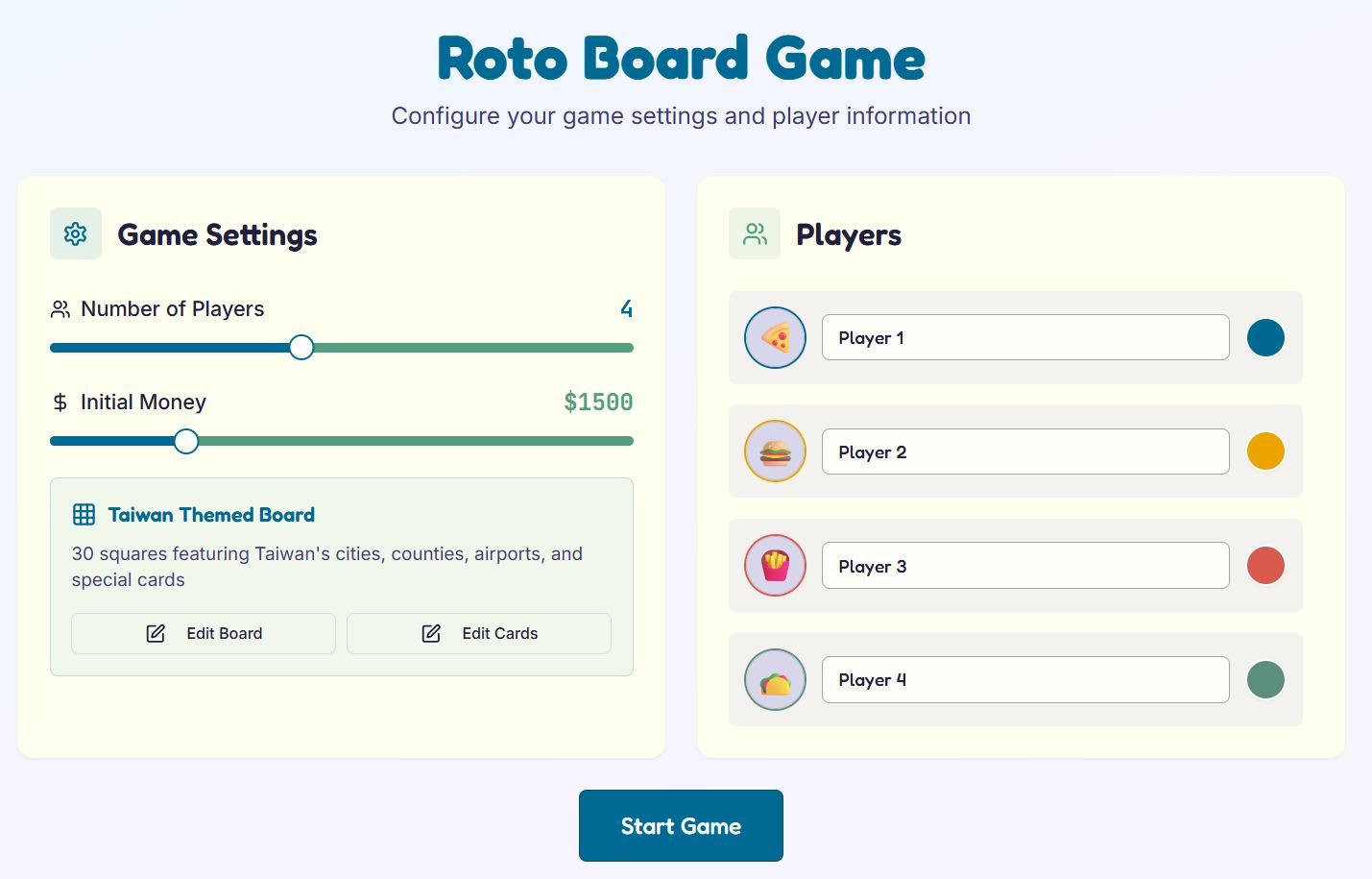
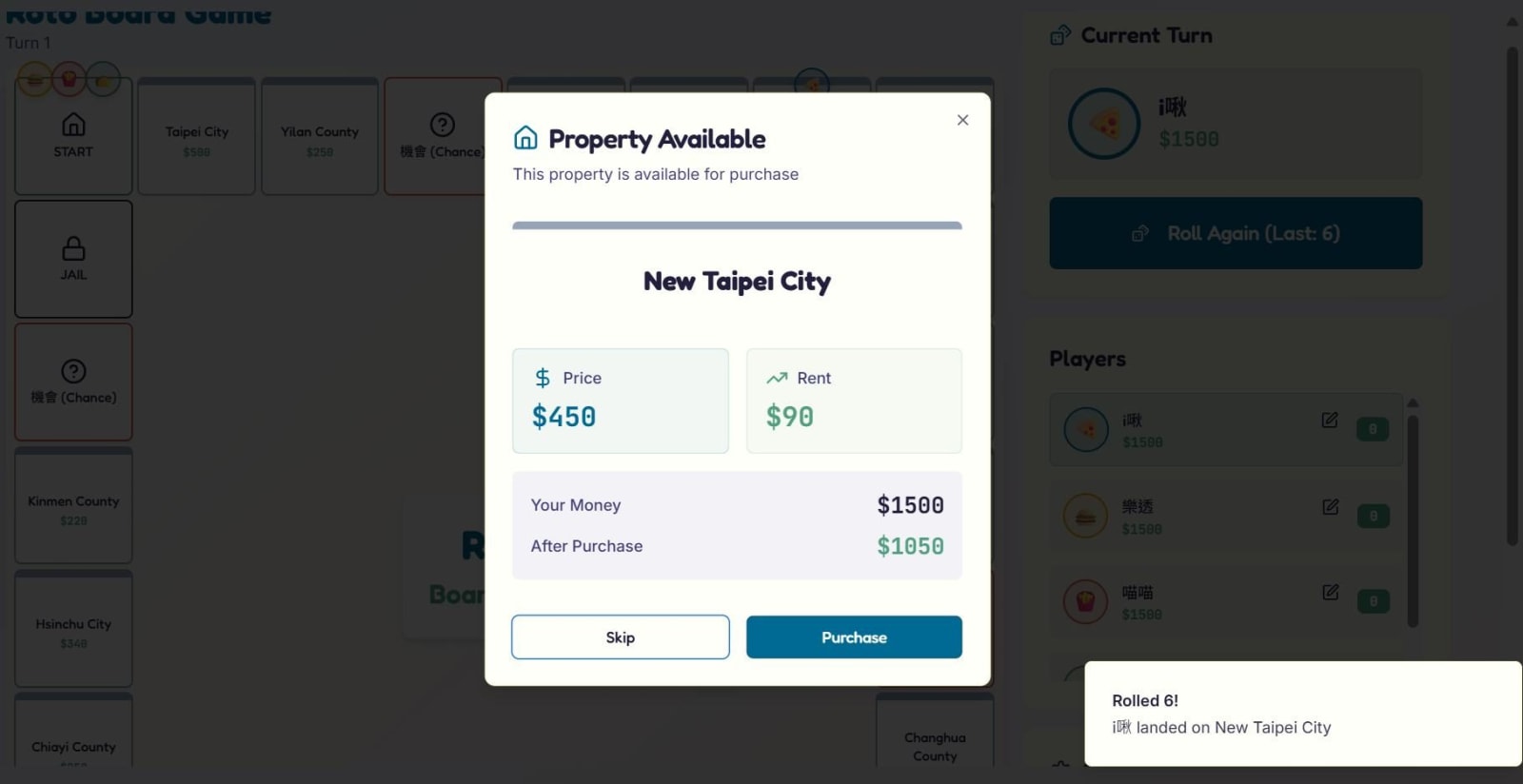
A brand-new version of Monopoly is here — and it’s a web app! It now supports actual property purchases and 1–8 players. It’s also fully in Chinese now! 😀
2024/08/18
Worth the wait — the new version is ready! If you need it, see the instructions below. 🙂
2023/07/01
The template content needs some adjustments, so downloads are temporarily paused. For certain reasons, the old version is not available upon request — messages or emails asking for the old version will not be replied to.
2021/06/23
Monopoly with no money is no fun! Want to play with money? Want to swap out the board pieces for your own students’ photos? You can do all of that with myViewBoard!
Download myViewBoard and check out this video to see how it works!
2021/06/18
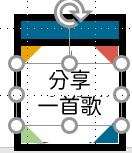
Some teachers noticed that certain icons couldn’t be clicked. This happens because the question text boxes were placed over the animal images during template design, blocking the click target.
You can manually shrink the question text box — for example, resize “Share your favorite song” in the lower left to something shorter like “Share a song,” matching the border size shown below. This fixes the issue.
Since every teacher writes questions of different lengths, this is something you’ll need to adjust yourself.
Another option is to use myViewBoard to move the pieces — that way you won’t run into this at all. I’ll also do a livestream walkthrough soon!
Stay tuned to the Facebook page!
2021/06/16
Fixed the issue where the rabbit and bear pieces in the jail area couldn’t be clicked.
What’s the Point of Monopoly as a Teaching Activity?
I’m sure everyone knows how Monopoly works XD
This version weaves in course content alongside a few mini-activities, giving students a fun change of pace during class.
It’s a big-picture mashup that pulls together things I’ve used before — like the spin wheel and matching game.
The whole point of these templates is to give you flexibility and make teaching easier. If you need something ready to go right now, downloading a template is absolutely the fastest way.
How to play:
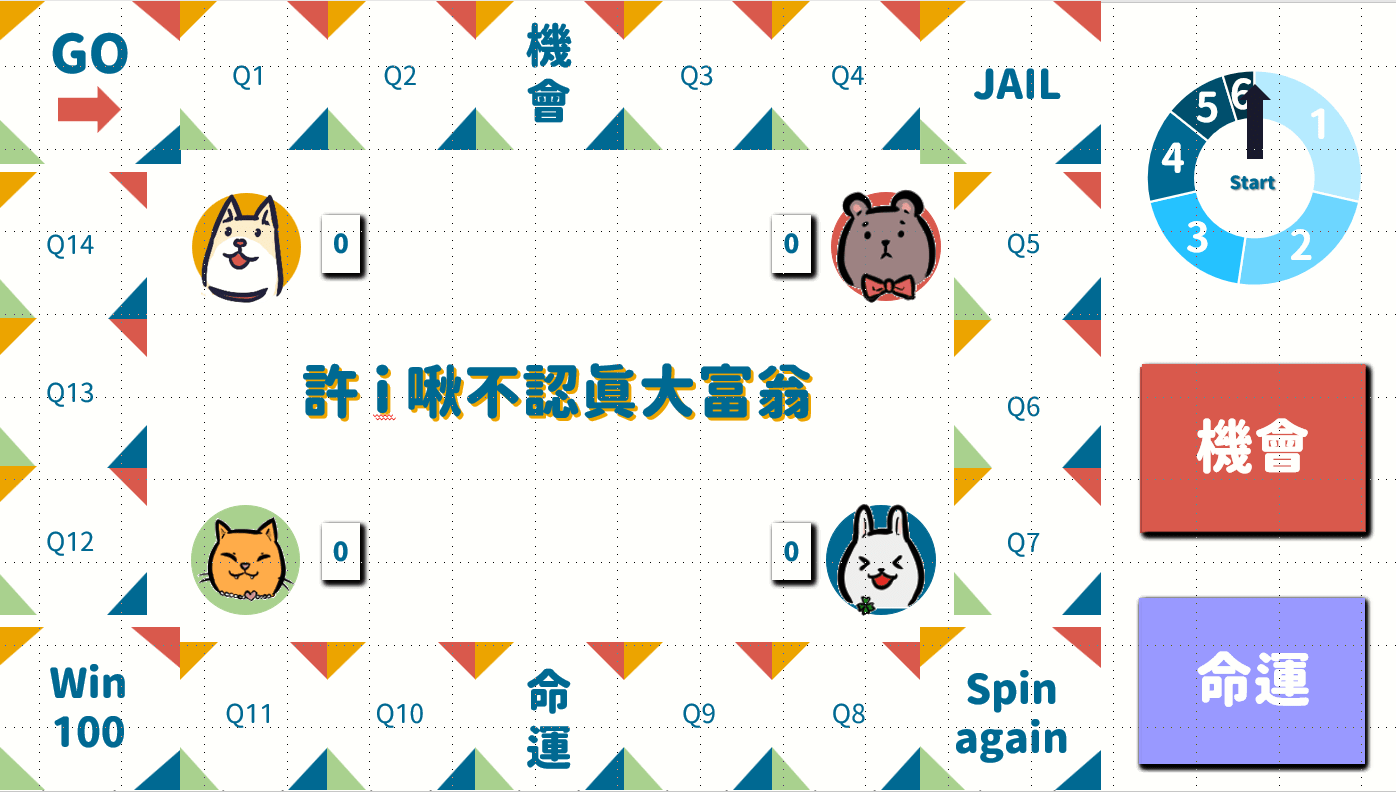
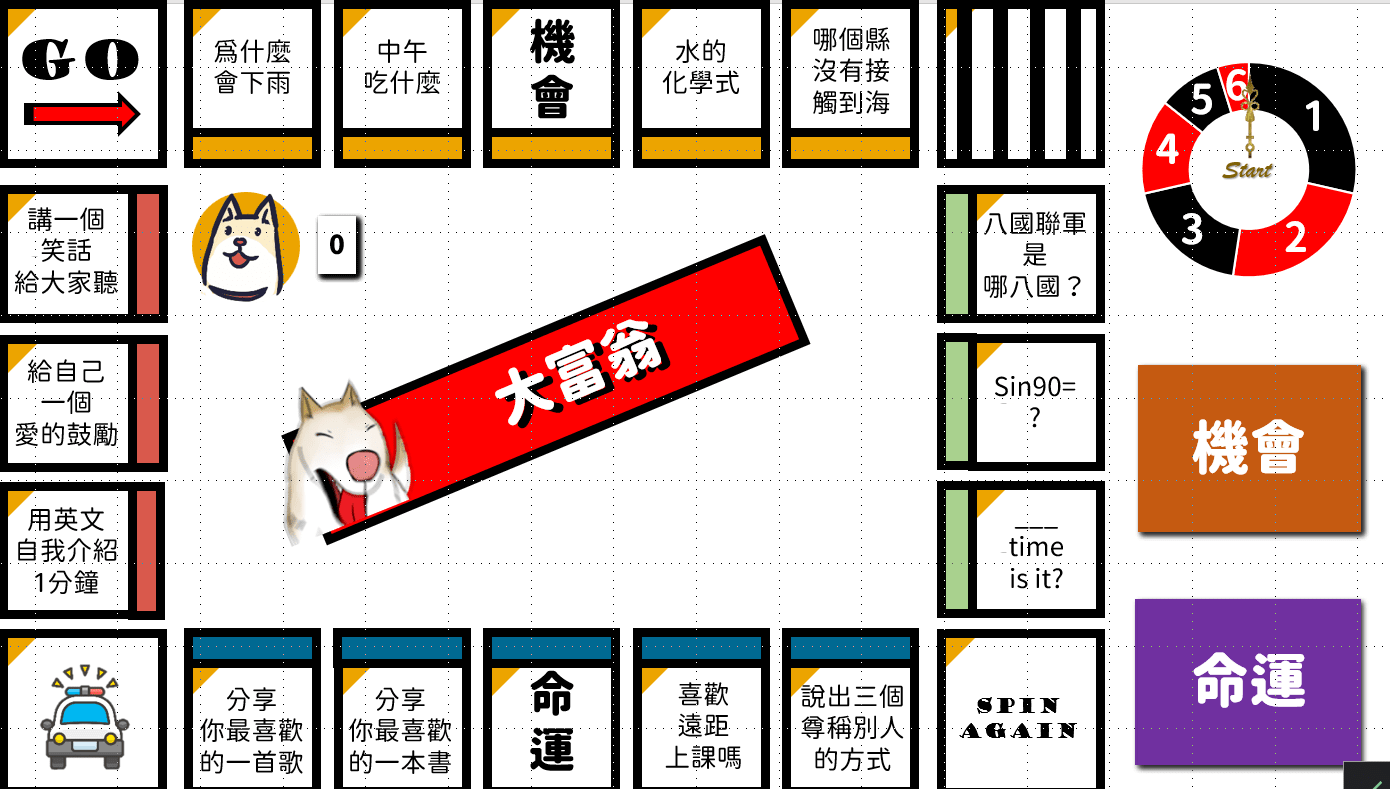
Students split into four players or four teams, each choosing an animal piece.
Press Start on the spin wheel, then press again to confirm the number of steps.
Move that many spaces, then find the matching color on that square and click it — the animal icon will appear, marking its location.
e.g., If the dog moves two spaces, click the top-left corner of the second square — the dog icon will appear. Click it again to make it disappear when leaving that square. Make sure the cursor turns into a hand icon before clicking. Clicking near the edge of a square tends to work better.
Landing on Chance or Community Chest: click the card in the bottom-right corner to reveal the prompt.
If a player completes a full lap, click the “0” next to the animal — it will mark that they’ve gone around once.
This game works great as a competition by laps — whichever team completes the most laps wins.
Of course, you can also add score values inside the template to run a point-based competition instead.
The following sections walk you through how to customize the template (if you can’t open the file after downloading, see this guide).
Setup notes:
Software used: PowerPoint 2019 or above (This activity is compatible with older versions of PowerPoint. If you run into issues, feel free to leave a comment.)
Template font: Genshin R, Genshin H (free font — click here to download)
Using the Template: Monopoly in PowerPoint
First, download the demo version below (if you can’t open the file after downloading, see this guide).
After downloading, you’ll see a slide that looks a bit chaotic at first glance.
Make sure to open the Selection Pane first (see instructions here — go to Home → Select → Selection Pane). The following elements can be edited:
Community Chest cards 01–15
Chance cards 01–15
Q1–Q16
Title
After making your edits, remember to make all elements in the Selection Pane visible again — and you’re done!
I’d recommend not changing anything else; it’s very easy to break the animations if you do.
Demo Version vs. Monopoly PowerPoint Template (Ver. 2)
Worth the wait, everyone!
After a lot of feedback, I rebuilt the original template from scratch. Monopoly PowerPoint Template (Ver. 2) is now finished. 😀
If you’re using this solo (single-player scenario), the demo version works fine — it hasn’t been updated in terms of design or UX, and it only supports one player, but most of the core features are functional.
If you need multiplayer support, you can get the full template with a small contribution. In addition to a better UX, design, and all features unlocked, you’re also welcome to email or message me anytime if you have questions about using it.
Choose whichever version fits your needs — and if you’re curious about the full version, I’d still recommend trying the demo first to see if it works for your classroom.
Demo Version
For testing the template — suited for single-player classroom use.
Includes the core Monopoly features:
Step spin wheel
1 player
3 Community Chest cards
3 Chance cards
Template content is fully editable.
FREE
Monopoly PowerPoint Template (Ver. 2)
Better design and UX — suited for multiplayer scenarios.
Includes all Monopoly features:
Step spin wheel
4 players
12 Community Chest cards
12 Chance cards
Template content is fully editable.
Feel free to email anytime with questions about the template.
Support
How to Get Monopoly PowerPoint Template (Ver. 2)
If you’ve tried the demo and want to upgrade, here are two ways to get it. 🙂
If neither option works for you, feel free to email or message the Facebook page to discuss other arrangements.
PayPal.Me
You can send a contribution of NT$150 or USD $5 or more via PayPal to my PayPal.Me account.
Once done, please send me an email or Facebook message — Iju Hsu will reply within 3 days.
Buy Me a Coffee
Click the coffee icon in the lower right corner of the site and contribute USD $5 or more. Credit card and Google Pay are both accepted.
After completing the contribution, a form will appear on the platform — fill it out and Iju Hsu will reply within 3 days.
License and Terms of Use for Monopoly PowerPoint Template (Ver. 2)
1. Scope of license: This template is for personal and non-commercial use only. Any commercial use requires written permission from “ijuhsu — Mostly Harmless.”
2. No distribution or reproduction: Without explicit written permission from “ijuhsu — Mostly Harmless,” you may not distribute, sell, rent, transfer, or share this template with any third party. Copying, modifying, reverse engineering, decompiling, or creating derivative works from the template is also prohibited.
3. Copyright: All content in this template — including but not limited to design, text, images, and concepts — is the property of “ijuhsu — Mostly Harmless” and is protected by copyright law and international copyright treaties.
4. Limitation of liability: “ijuhsu — Mostly Harmless” is not liable for any direct or indirect losses resulting from use or inability to use this template.
5. Consequences of violation: If a violation of these terms is discovered, “ijuhsu — Mostly Harmless” will take all necessary legal action and seek compensation for related losses.
6. Refund policy: As this is a digital product, once the template has been downloaded or sent, no refunds will be issued. We strongly recommend downloading and testing the free demo version before purchasing to confirm it meets your needs. Supporting this template indicates that you have read and agreed to this refund policy.
I hope this has been helpful!
The trickiest part was figuring out how to show students which square they’re on — the solution I landed on was using trigger animations.
Though it later turned out that myViewBoard can handle that too, so maybe it wasn’t necessary after all XD
If you have any questions, or there’s an activity you’d like to learn, feel free to leave a comment anytime!
For all PowerPoint-based online teaching activities, see:
Thanks again everyone — wishing you smooth sailing with online teaching!
Thanks for reading :D
If you enjoyed this post, feel free to click the coffee button in the lower right to support us and give Lottery a can 🐾



Comments