10 PPT Activities for Online Teaching — 06 Tic-Tac-Toe (OOXX)
This post covers the Tic-Tac-Toe (OOXX) activity from the 10 PPT Activities for Online Teaching series — using PowerPoint triggers to create a polished interactive classroom game that adds a fun competitive element to any lesson.
Before diving in, I’d recommend reading the first post in this series, which covers the goals and key considerations for online teaching activities.
For all online teaching activity resources, visit the Online Teaching Resource Hub — interactive PowerPoints, Google tools, useful apps, and more.
What This Activity Is For
There are many ways to run a Tic-Tac-Toe activity — you could add questions directly on a Jamboard, or simply write on top of your PowerPoint as you present. But if you care about the visual presentation, or prefer not to open or switch to a Jamboard, you can build the whole thing directly in PowerPoint — and it actually looks quite nice.
My usual approach is to put the hardest question in the center square and easier ones around the edges. Split the class into two teams and you’re ready to go.
I’m already regretting the decision to call this series “10 activities” XD — so many of these are just variations on a theme. This Tic-Tac-Toe is essentially a remix of the Card Flip game from earlier in the series, and honestly it barely even needs animations (the animations are just there to make it look polished and cool).
The whole point of these templates is to give teachers more flexibility in adapting content — and to make teaching simpler. If you ever need something ready to go right now, downloading a template is absolutely the fastest way.
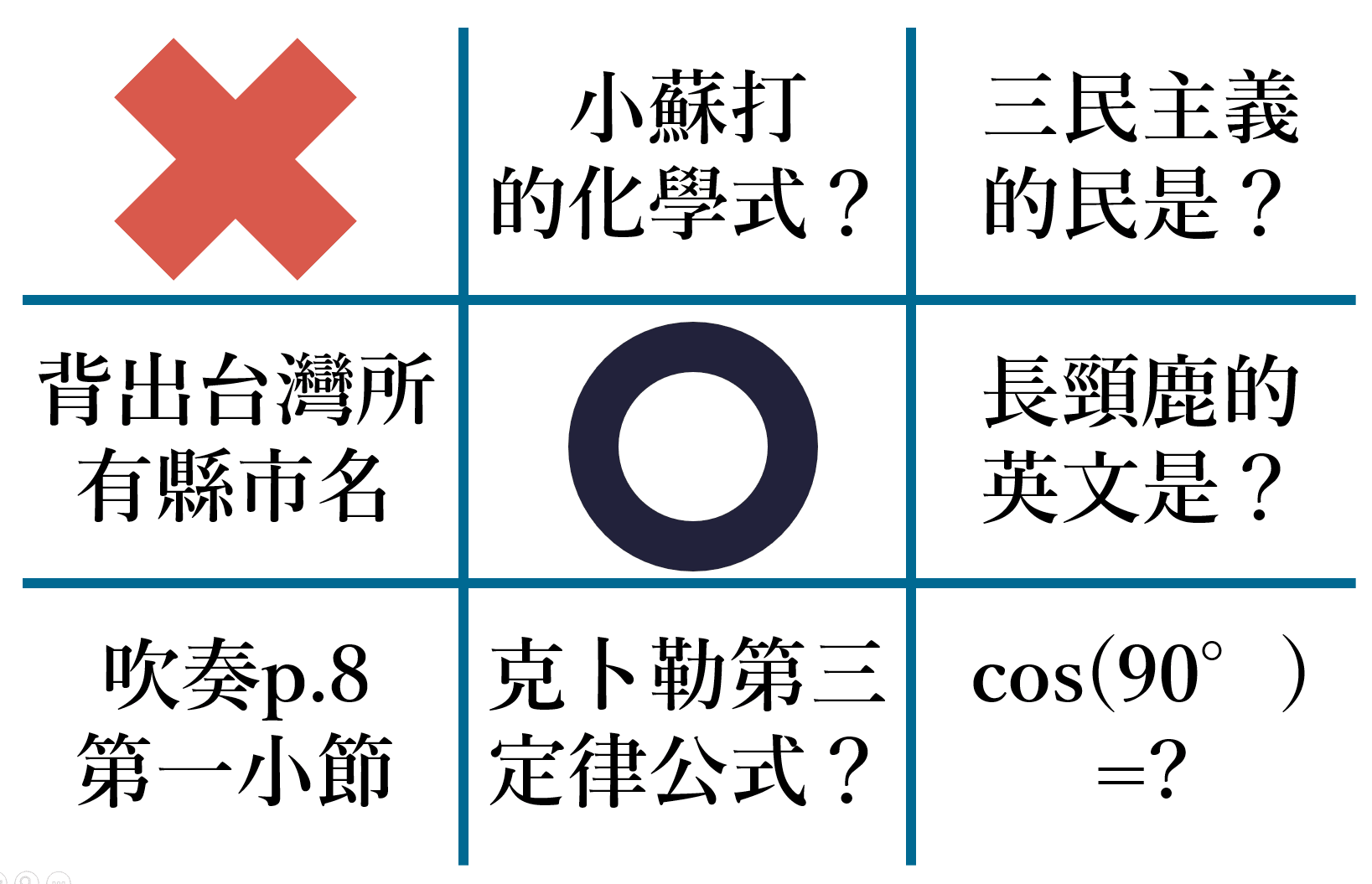
Instructions below show you how to customize the template (click here to download — if it won’t open after downloading, see this troubleshooting guide).
How to use it:
One click → ◯ appears. Two clicks → ✕ appears. One more click → back to the question.
Software: PowerPoint 2019 (this activity is compatible with older versions of PowerPoint — feel free to leave a comment if you run into issues)
Template font: Yu Mincho Demibold (built into Mac; also free on Windows, though it’s a Japanese font and some characters may be missing)
Using the Template: Tic-Tac-Toe in PPT
Download the file below first (if it won’t open, see this guide):
Template_Tic-Tac-Toe (OOXX) Download
Once downloaded, the slide will look a bit chaotic at first.
Open the Selection Pane (click here for instructions — go to Home → Select → Selection Pane), then hide all the O1–O9 and X1–X9 layers (click the eye icon next to each). Now you can start editing.
When you’re done, make sure all elements in the Selection Pane are set to visible. That’s it!
Hope this is helpful!
If you have any questions, or there’s an activity type you’d love to see, feel free to leave a comment anytime!
For all PowerPoint activities in the online teaching series, see the latest post in the series.
Thanks again — wishing everyone smooth and enjoyable online teaching!
Thanks for reading :D
If you enjoyed this post, feel free to click the coffee button in the lower right to support us and give Lottery a can 🐾
Comments