10 PPT Activities for Online Teaching — 13: Lottery's Big Adventure RPG
This post introduces the 'Lottery's Big Adventure RPG' activity from the 10 PPT Activities for Online Teaching series — a pixel-art-style adventure game built in PowerPoint that puts course content inside a dungeon-crawling experience, giving students the feeling of clearing stages.
Before reading this post, I recommend checking out the first post in this series, which covers the goals and key considerations for online teaching activities.
For all online teaching activity resources, visit the Online Teaching Resource Hub, which includes all interactive PowerPoint activities, Google tools, and other useful resources.
What This RPG Activity Is For
The RPG format is essentially a multiple-choice activity — but wrapping it in game elements immediately grabs students’ attention and gives them the feeling of clearing stages.
That said, fair warning: this is built in PowerPoint, so it can’t be fully realistic, and there are real limitations. Still, the visual experience should be pretty satisfying. XD
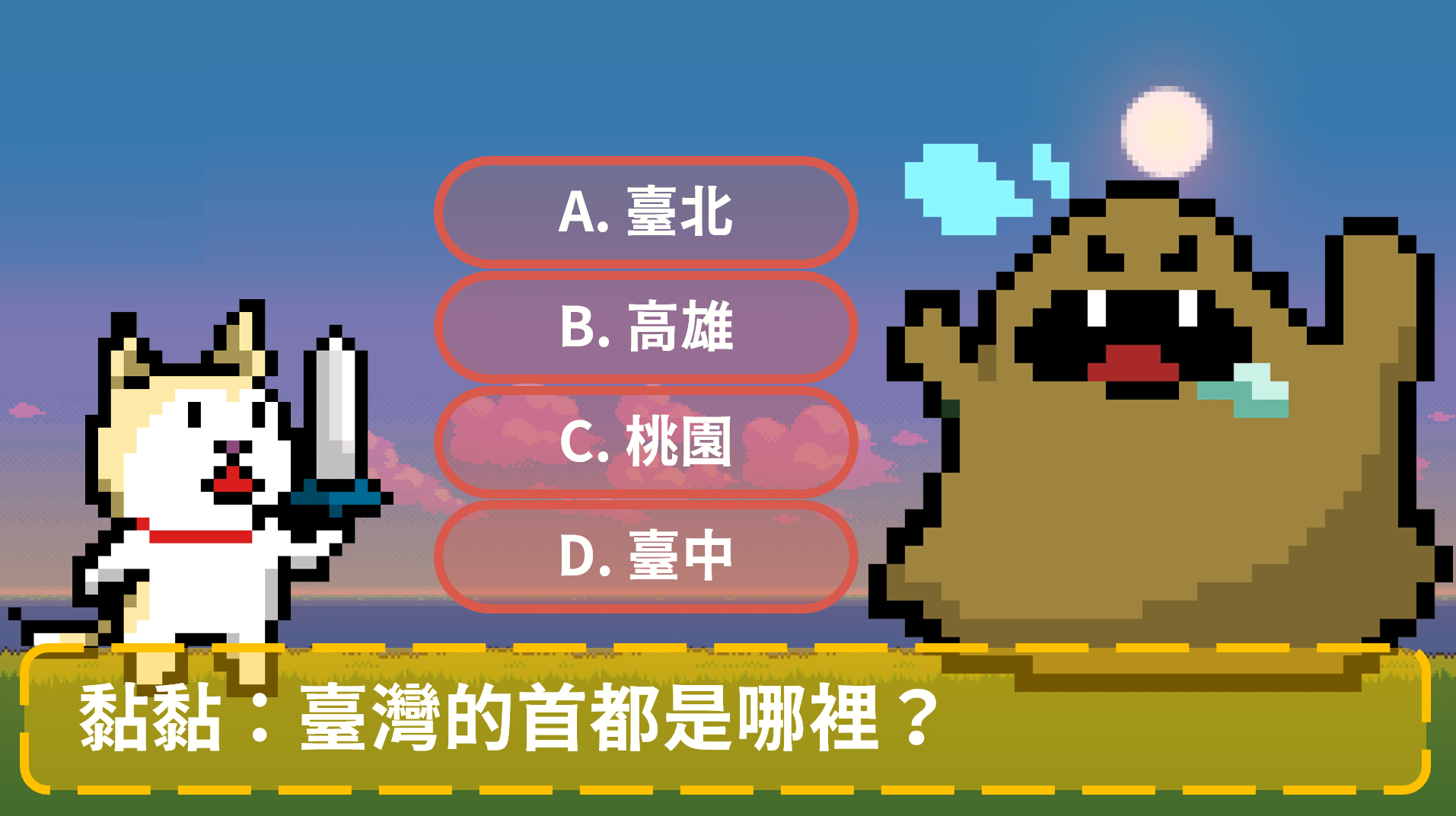
How it works:
- Students play as the adventurer Lottery, clearing stages by answering correctly
- Wrong answers make the monster roar in anger; correct answers drop a treasure chest — click the chest to advance to the next stage
- Defeat the final boss to rescue Lottery’s friend, Lele
See the demo video for reference:
Since PowerPoint can’t track HP, if you use myViewBoard you can add an HP mechanic — wrong answers deal damage, treasure chests restore HP — which makes the whole activity a lot more fun!
Requirements:
Software: PowerPoint 2019 (compatible with older versions, but transitions won’t look as polished)
Fonts: Genseki Gothic B, DotGothic16 (both free)
Images: Background, Treasure Chest
Music: Opening Theme, Adventure BGM, Boss Battle
Sound Effects: Monster Hit, Monster Roar, Victory Fanfare
Using the Template: Building the RPG in PPT
This template isn’t particularly complicated — the trickiest parts are the transitions and music settings, which I’ll walk through below. That said, you can absolutely skip those customizations and the activity still works fine!
I recommend downloading the file and playing through it once before making any edits — it’ll make the whole structure much clearer.
The file is on the larger side, so give it a moment to download.
Basic Template Edits
The template has 9 slides total. Slide 1 is the game start screen. Slides 2–5 are the “correct answer” slides for options A through D respectively. Slides 6–9 are the boss battle stages, again one per answer option A through D.
How to modify:
-
Slide 1 can stay as-is (feel free to edit the text)
-
Regular stages: Slide 2 = correct answer is A, Slide 3 = B, and so on. The animations are pre-set — please don’t change them if you’re not sure what you’re doing.
So if your quiz answers are A, A, C, D, C, use slides 2, 2, 4, 5, 3 in that order.
(Note: each monster color corresponds to one answer option — if you’re worried sharp students might figure it out, download new monster images and swap them in.) -
Boss battle: You only need one boss slide. Choose the one you want and delete the rest.
Other things you can customize:
- The “Lottery Adventure” title text
- Monster and adventurer images (right-click an image and select “Change Picture”)
- Questions and answer options
- Music
Downloading Additional Assets
All third-party assets used are credited in the section above. You can also download these monster GIF files to replace the existing monsters (since the current monsters are color-coded to answers, attentive students might notice XD):

Advanced Edit: Transitions
Older versions of PowerPoint don’t support the “Morph” transition, so the slide from page 1 to page 2 may look a bit abrupt — but it won’t break anything important.
If you’re on a newer version of PowerPoint and want smoother transitions after setting up your questions:
- Slide 2 (the first adventure slide): set to Morph
- All subsequent slides: set to None
Advanced Edit: Music
The music settings are a bit fiddly. If you’re not confident with audio settings, it’s totally fine to skip this part — it can get a little noisy during a lesson anyway. XD
For information on how to let students hear the audio, check out Teacher Lian Yuren’s guide.
Slide 1 music: leave it as-is — it plays automatically when the presentation starts.
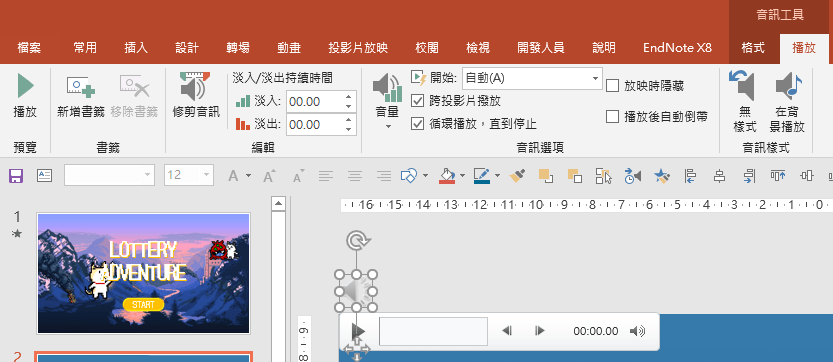
Slide 2 (the first adventure slide): check “Play Across Slides” and “Loop Until Stopped” (see the first screenshot below).
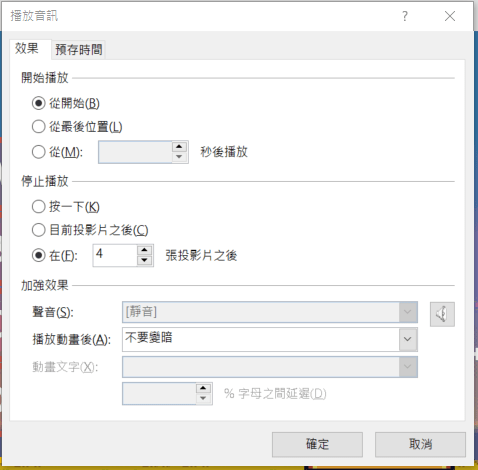
Then go to Animations, find the audio effect, and set it to stop playing “After __ slides” (see second screenshot).
If you have ten stages before the boss fight, enter 10 — that way the BGM cuts off right when the boss battle begins.
Boss battle music: no changes needed.
Hope this was helpful! If you have questions or there’s an activity type you’d like to see covered, feel free to leave a comment.
For all PowerPoint activities in the Online Teaching series, see:
Thanks again, and wishing everyone smooth sailing with online teaching!
Thanks for reading :D
If you enjoyed this post, feel free to click the coffee button in the lower right to support us and give Lottery a can 🐾
Comments