Google Tools for Teachers (2): Google Sheets VLOOKUP to Auto-Fill Quiz Grades
A guide to using the VLOOKUP function in Google Sheets to automatically transfer quiz scores into your class grade sheet — no more copy-pasting grades by hand. Useful for both online and in-person teaching.
For all online teaching resources, visit the Online Teaching Resource Hub, which covers interactive PowerPoints, Google tools, and other useful materials.
Auto-Filling Quiz Grades with VLOOKUP in Google Sheets
Online quizzes (see how to create one here) are incredibly convenient — they auto-grade, calculate scores, and give students feedback automatically.
But once you have the scores, there’s still the question of how to get them into your existing grade sheet. Do you really have to enter them one by one by hand?
This is where the VLOOKUP function in Google Sheets comes in. It can do that work for you.
The VLOOKUP Function in Google Sheets
Step 01 — Open Your Grade Sheet and Paste in the New Scores
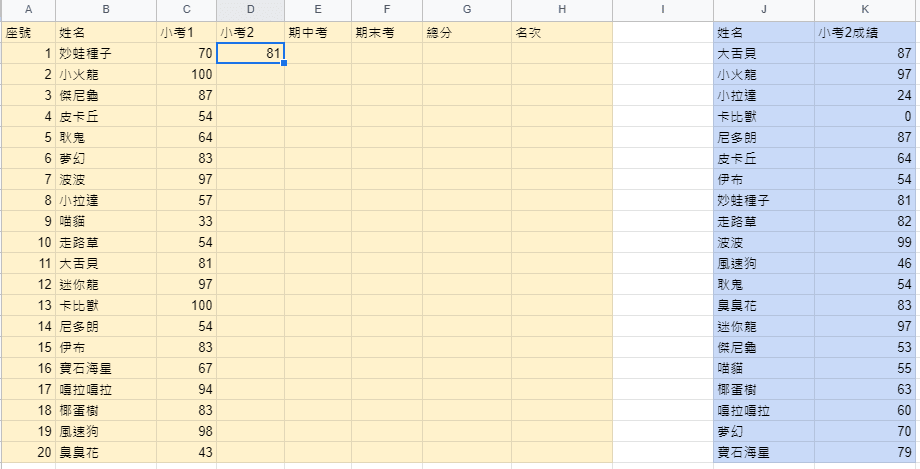
Open your existing grade sheet, then paste the new quiz scores alongside it. In the example below, the yellow section is the original grade sheet, and the blue section contains the “Quiz 2” results (perhaps exported from a Google Forms quiz).
Notice that the students in the blue section aren’t in the same order as the grade sheet. You could sort them manually, but in many situations — especially in university courses where students come from different departments — sorting by student number isn’t straightforward. That’s exactly the problem VLOOKUP solves.
Step 02 — Understanding the VLOOKUP Function
VLOOKUP is a function — similar to SUM or AVERAGE in Excel. What does it do?
It finds a matching value that appears in both tables, then pulls the corresponding data you want into your target cell.
In this example, I want to fill in the Quiz 2 column in the yellow table, matching each student by name and pulling in their score from the right-hand table.
The VLOOKUP function looks like this:
=vlookup(search_key, range, index)
Here’s the concept:
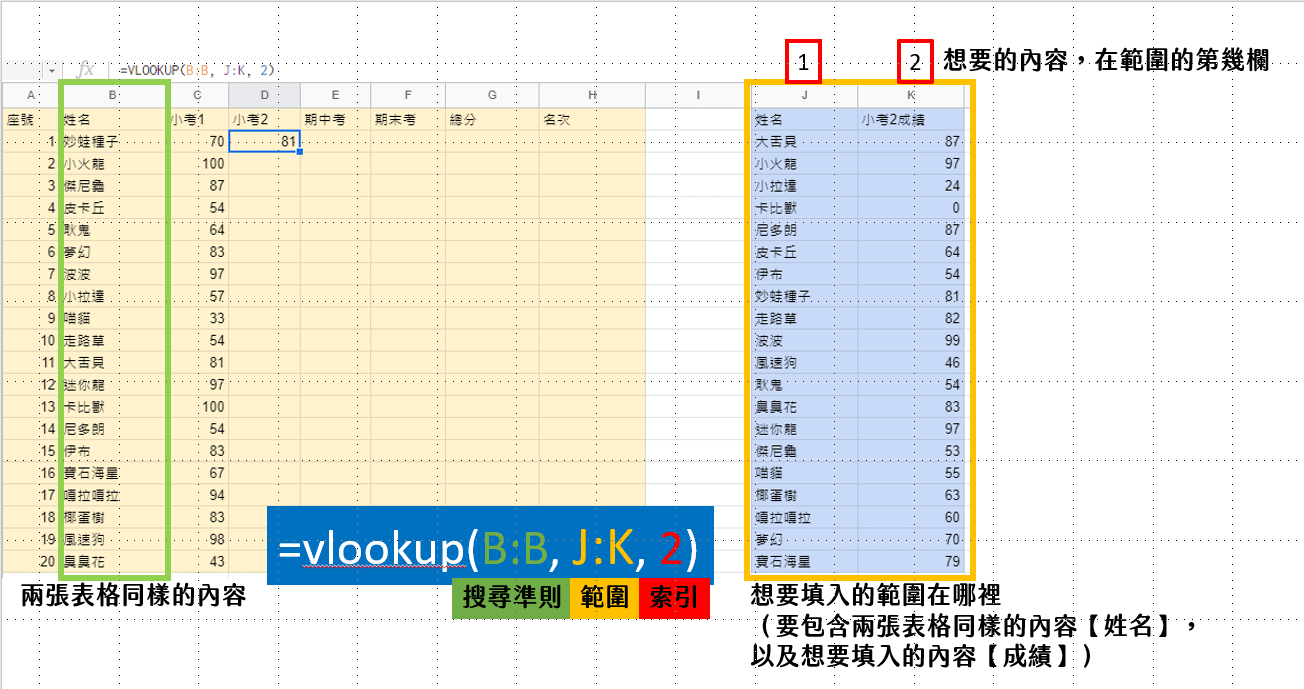
First, identify the column that both tables have in common — in this case, that’s “Name” in column B.
Then, define the range to look up, which must include both the shared column and the column you want to pull in. Here, that’s the blue table on the right, covering columns J through K.
At this point, the formula looks like:
=vlookup(B:B, J:L, index)
So what’s the index? It’s the position of the column you want to pull, counted within the range you selected.
In this range, the score column is the 2nd column — so the index is 2.
The final formula is:
=vlookup(B:B, J:L, 2)
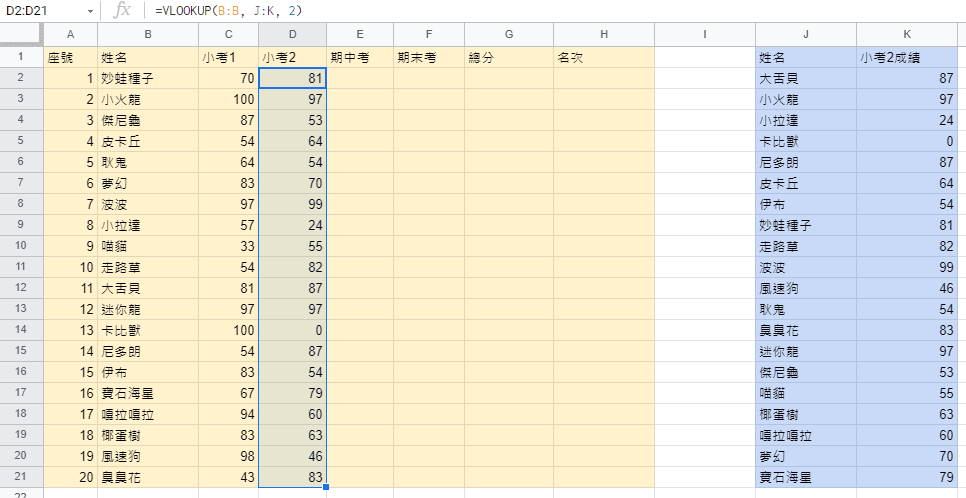
Apply this formula to every row in the Quiz 2 column, and you’re done:
Step 03 — Convert Formulas to Static Values
Right now, each cell contains a formula. If you delete the blue table on the right, all those cells will show #N/A:
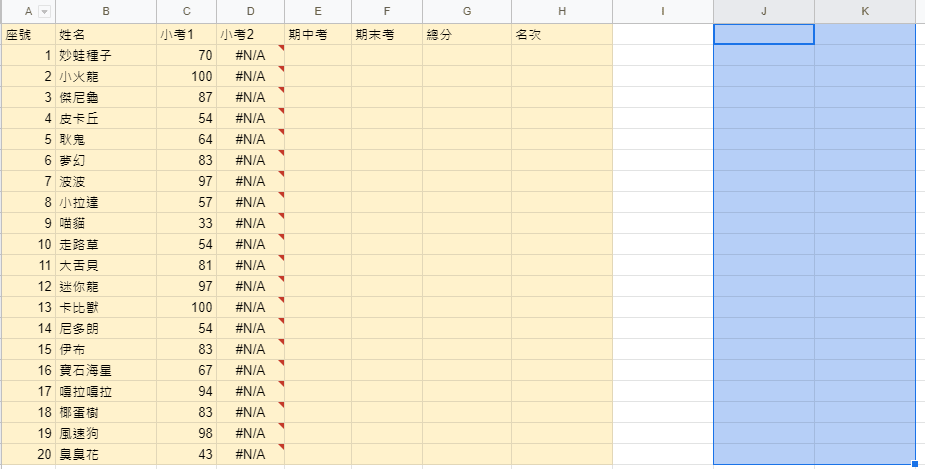
Here’s the fix: select all the filled-in score cells, copy them, then right-click in the same location and choose Paste special → Paste values only.
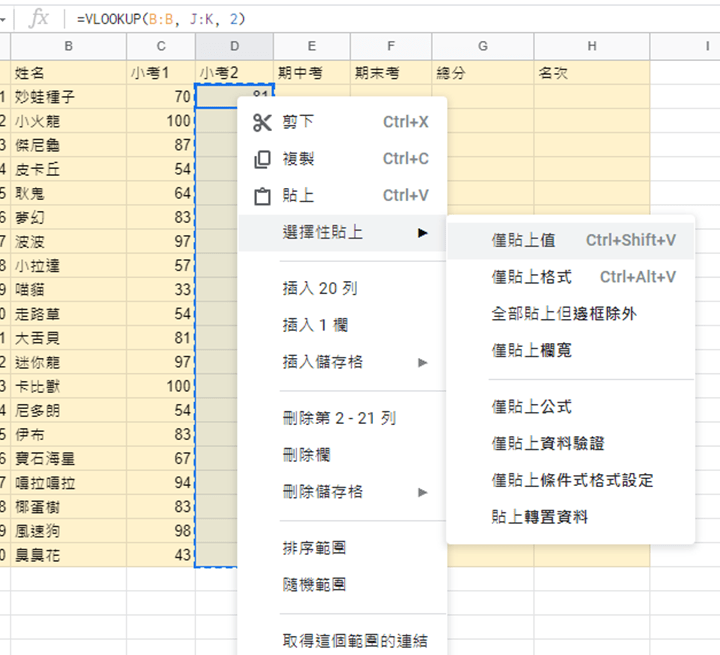
After doing this, clicking any of those cells will show a plain number rather than a formula. Now you can safely delete the blue table on the right.
That’s it for this tutorial — how to use VLOOKUP to automatically populate your grade sheet. I hope this was helpful!
If you have any questions or topics you’d like me to cover, feel free to leave a comment anytime.
For all interactive PowerPoint teaching activities, see:

Online Teaching: 10 Useful PPT Activities and Templates — 13 Lottery’s Big Adventure RPG
Iju Hsu · 2021/06/28 · 12 comments
This post introduces the “Lottery’s Big Adventure RPG” — a pixel-art style adventure game built in PowerPoint that blends course content with gameplay, giving students the feeling of clearing levels.

Online Teaching: 10 Useful PPT Activities and Templates — 12 Snakes and Ladders (with myViewBoard)
Iju Hsu · 2021/06/24 · 5 comments
This post introduces “Snakes and Ladders” — a PowerPoint activity combined with myViewBoard. It works great as a group competition game, and the element of chance keeps things exciting.

Teaching Presentation Design — 04: 40 Free Image Resources: Photos, Icons, and Illustrations All in One!
Iju Hsu · 2021/06/20 · 13 comments
A roundup of free image resources for teachers, covering Creative Commons licensing and categorized by type: general, photos, icons, illustrations, typography, and more.
Thanks again, and I hope your online teaching goes smoothly!
Thanks for reading :D
If you enjoyed this post, feel free to click the coffee button in the lower right to support us and give Lottery a can 🐾
Comments