Google Tools for Teachers (4): Google Sheets to Google Form — Convert Quizzes Instantly with Form Builder
This post covers how to use the Form Builder add-on to create quizzes quickly. If you've already written your questions in Google Sheets, you can convert them directly into a Google Forms quiz in just a few clicks.
For all online teaching activity content, visit the Online Teaching Resource Hub, which includes all interactive PowerPoint templates, Google tools, and other useful resources.
Google Sheets to Google Form — Convert Quizzes Instantly with Form Builder
Online quizzes (see here for how to build one) are incredibly convenient — auto-graded, scored, and with built-in feedback.
But some teachers aren’t quite used to building them directly in Forms, or find it too time-consuming when there are a lot of questions.
Here’s how to use the Form Builder add-on to build quizzes quickly!
Note: The free version of this add-on allows up to 50 questions per import. If you find it useful after trying it out, there is a paid upgrade for unlimited imports.
I’ll keep looking for a fully free alternative in the meantime orz
Someone in the community has also written their own code to do the conversion — if you’re comfortable with code, check out this post!
Converting a Word quiz to a Google Form — a faster method (by Teacher Lian Yuren)
Form Builder Add-on
Step 01: Install Form Builder in Google Sheets
Open a Google Sheet, then go to Extensions → Add-ons → Get add-ons, and search for Form Builder. Install Form Builder for Sheets.
Click through the permission prompts to accept (for a security discussion, see the end of this post).
Step 02: Open the Form Builder Add-on
After installing, refresh the page, then go to Extensions → Form Builder for Sheets → Start.
A panel will appear on the right side — this is where we’ll work.
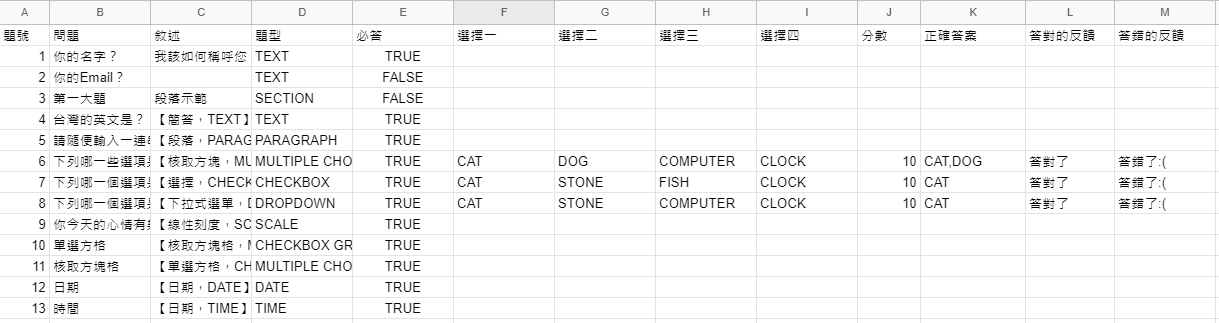
Step 03: Build Your Quiz in Google Sheets
For now, close or minimize the add-on panel and focus on building the quiz. A typical quiz includes the following columns:
- Question
- (Description)
- Question type: must be written in English
- Short answer: TEXT
- Paragraph: PARAGRAPH
- Multiple choice: MULTIPLE CHOICE
- Checkboxes: CHECKBOX
- Dropdown: DROPDOWN
- Linear scale: SCALE
- Multiple choice grid: MULTIPLE CHOICE GRID (formatting can be off — always review in the form afterward)
- Checkbox grid: CHECKBOX GRID (formatting can be off — always review in the form afterward)
- Date: DATE
- Time: TIME
- Required: TRUE for required, FALSE for optional
- Answer choices
- Point value
- Correct answer: for multiple correct answers, separate with a comma ”,”
- (Feedback for correct answer)
- (Feedback for incorrect answer)
Reference the screenshot below:
Step 04: Use Form Builder
Open the Form Builder for Sheets add-on and click Start. A panel will appear on the right — select Quiz.
Here’s what the settings mean:
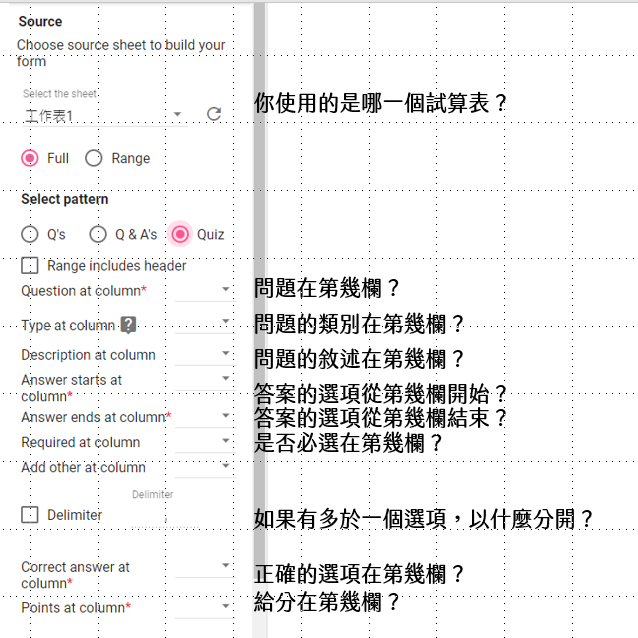
Based on the spreadsheet we set up earlier:
- Question at column: B
- Type at column: D
- Description at column: C
- Answer starts at column: F
- Answer ends at column: I
- Required at column: E
- Delimiter: check the box, set to ”,” [This is used when a question accepts multiple correct answers — e.g., if both CAT and DOG are correct, separate them with ”,”]
- Correct answer at column: K
- Points at column: J
Once everything is configured, click GET. Scroll down in the panel and you’ll see this:
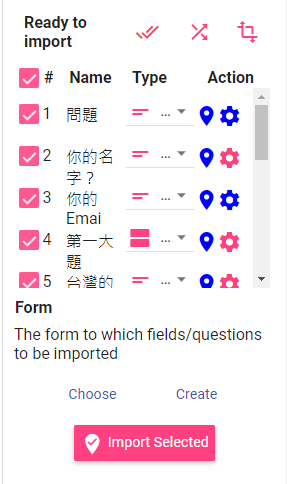
All your questions have been parsed and listed out! Take a moment to check that the question types look correct.
(You can always edit things after importing, so don’t stress too much.)
Next, you’ll see two buttons: Choose and Create:
- Choose: if you already have a form set up, click this and select which form to import into
- Create: if you’re starting fresh, click this and it will generate a brand-new form for you
Then click Import Selected and let it run.
When it finishes, you’ll see a small icon appear next to the file you selected — click it:

And there’s your newly created form!
Step 05: Review and Verify Settings
Now go through the form and make sure everything is configured the way you want. Refer to this post as a checklist:
Google Tools for Teachers (1): Building a Google Forms Quiz from Scratch — with Auto-grading and Scoring
Once everything looks good, just send it to your students. Done! :D
Note: Security Concerns
Some people have asked whether the permissions Form Builder requests are a security risk.
I can’t say there’s zero risk, since it does request quite a few permissions — but most of them seem necessary. Here’s a quick breakdown:
[For enabling/disabling the form]
- View, edit, create, and delete all your Google Drive files
- View and manage spreadsheets that this application has been installed in
- View and manage your forms in Google Drive
[For running the add-on]
- Connect to an external service
- Display and run third-party web content in prompts and sidebars within Google applications
[For sending students the “form closed” message]
- Send email on your behalf
This add-on is fairly well-known in its category, and realistically any add-on with these features will need these permissions.
That said, the first permission is quite broad. If you’re concerned about security, consider creating the form from a secondary Google account — that way, the impact is minimal.
I hope this one-click Sheets-to-Form walkthrough was helpful!
If you have any questions, or there’s an activity you’d like to learn about, feel free to leave a comment anytime.
For all PowerPoint-based online teaching activities, see:

10 PPT Activities for Online Teaching (13): Lottery Adventure RPG
Iju Hsu · 2021/06/28 · 12 comments
This post covers the “Lottery Adventure RPG” from the 10 PPT Activities series — a pixel-art style adventure game woven into course content that gives students the feeling of clearing stages.

10 PPT Activities for Online Teaching (12): Snakes and Ladders (with myViewBoard)
Iju Hsu · 2021/06/24 · 5 comments
This post covers “Snakes and Ladders” from the 10 PPT Activities series — combining slides with myViewBoard, it’s a great group competition activity made more exciting by the element of chance.
Thanks again everyone — wishing you smooth sailing with online teaching!
Thanks for reading :D
If you enjoyed this post, feel free to click the coffee button in the lower right to support us and give Lottery a can 🐾
Comments