life
Notion Tutorial: Work and Time Management with Notion
Why Notion for work and time management?
I’ve tried a lot of tools, and the one thing that matters most to me in a task manager is that it works in real time and stays in sync. I have a laptop (Windows/Mac), a tablet (Android), and a phone (Android) — and at any point during the day, whether I’m on the bus, in a meeting, or out with friends, I might suddenly think of something I need to log. If one device doesn’t sync, things fall through the cracks.
So for me, a good task management tool needs to handle reminders, prioritization, easy editing, and multi-device sync. With all that in mind, I naturally landed on Notion — the tool I was already most comfortable with. Here’s a general intro to how I use Notion for notes:
Notion: A Cross-Platform Note App for Notes, Resumes, and Travel Plans
Today’s post focuses specifically on using Notion for work management.
Notion work management in practice
I’ll just walk through the features I actually use. Notion has lots of templates, and I’m sure plenty of them work great — but let me show you the setup I know best and like most.
Table
Once you open a new blank page in Notion, you can build a table right away. The reason I prefer Table over Board is that Board can’t give me the at-a-glance overview I need. XD
Table is the most direct way to see all the information I care about in one view.
Sorry, I can’t share a live version of my actual task list — too much personal project info in there — but I’ll use this screenshot to walk through how I use it.
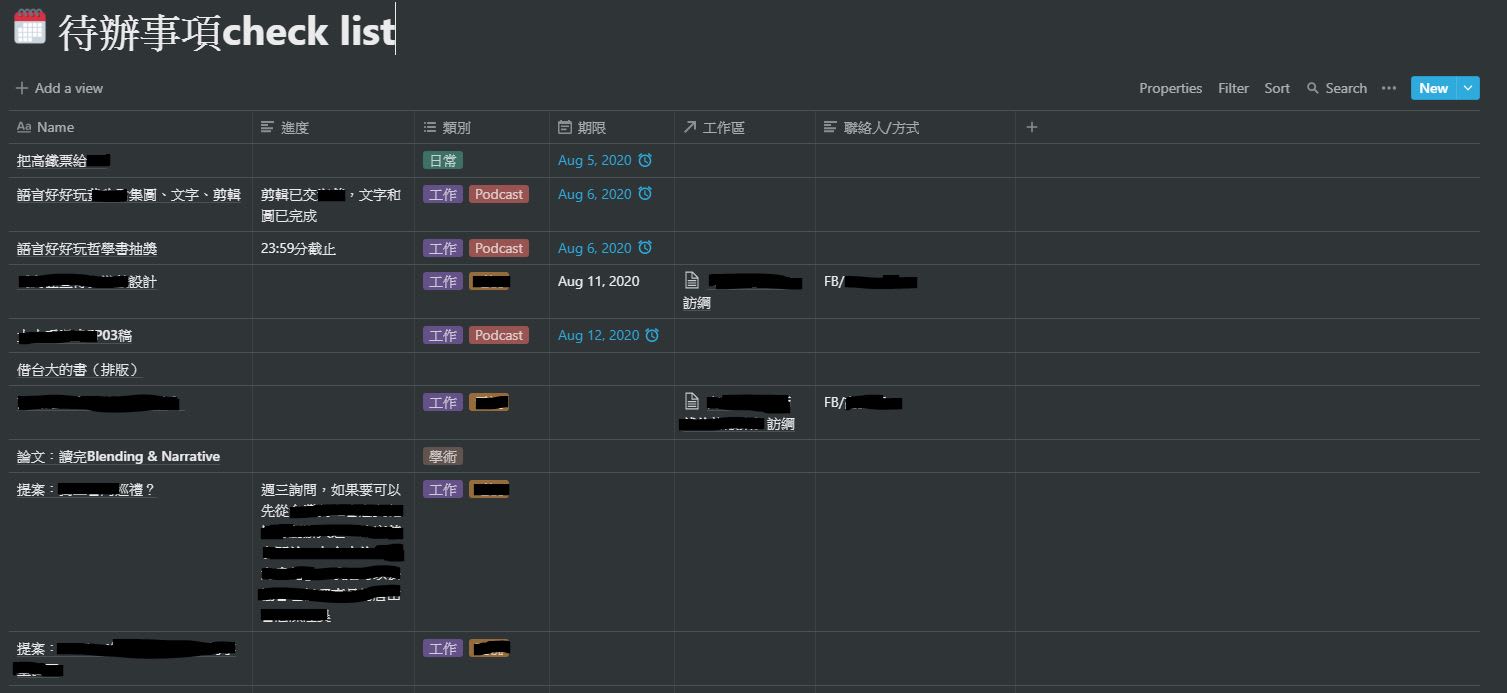
Here’s how my columns break down:
- Name: the task name [Property: Title (can’t be changed anyway)]
- Progress: detailed progress notes [Property: Text]
- Category: what type of task it is [Property: Multi-select]
- Deadline: due date or reminder — you can set a date range and even configure reminders [Property: Date]
- Workspace: I’ll explain this one separately [Property: Relation]
- Contact/Method: who I need to be in touch with for this task [Property: Text]
Most of these are pretty intuitive — and since it’s a table, all the standard operations you’d expect (sorting, filtering, formulas, search) are available. But I want to call out Relation specifically.
Relation links this table to another workspace (i.e., another file in Notion).
For example, you’ll notice I have two entries called “Interview Guide” — those are separate Notion files I’ve built. Without Relation, I’d have to hunt through Notion to find them each time. With Relation, it works like a hyperlink — one click and you’re there.
To set it up: when choosing a Property type, scroll down to find Relation, then select the workspace your file lives in. Once connected, you can instantly see which files are done and which ones still need work.
Board
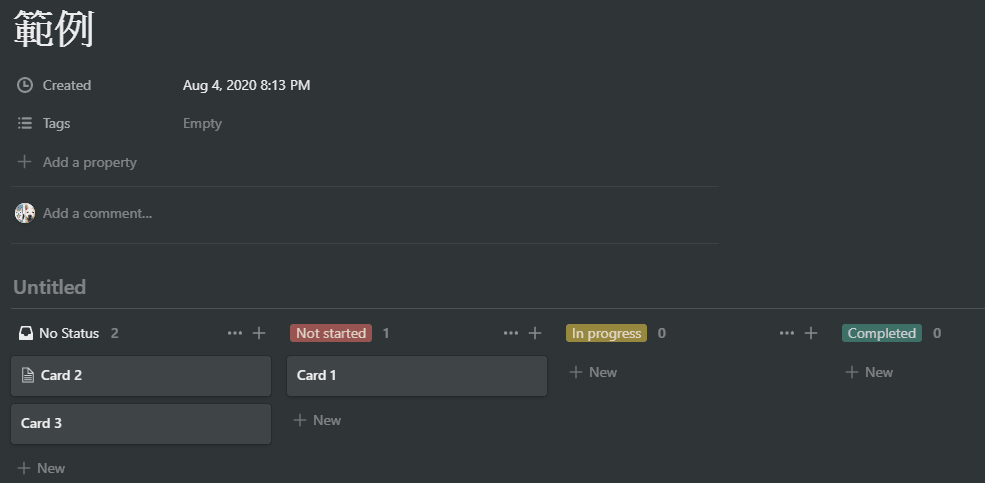
Board is probably what most people picture when they think of project management. It works a lot like Trello — each task becomes a card, and clicking into a card opens a new page where you can dump everything related to that task, like a sticky note board.
Notion even pre-populates the default column headers — “Not Started,” “In Progress,” “Completed” — so you don’t have to think about it.
Each card also has Status and Assign fields built in. If you and your colleagues are both on Notion, you can use Assign to hand off tasks or projects in seconds — really handy.
That’s the quick overview! What do you think? How do you manage your work right now? Come share in the comments! :D
Thanks for reading :D
If you enjoyed this post, feel free to click the coffee button in the lower right to support us and give Lottery a can 🐾
Comments