Drawing Tablets for Teaching: iPad, Graphic Tablets & LCD Writing Tablets Compared
A guide to three common drawing tablets used in online teaching: tablets like iPad or Android tablets, graphic tablets (without a screen), and LCD writing tablets. Each has its own strengths and trade-offs — here's how to choose the right one for your needs.
For all online teaching resources, visit the Online Teaching Resource Hub — interactive PowerPoints, Google tools, and more.
About Drawing Tablets
I started drawing a few years ago, so I got into drawing tablets pretty early on. They’re great for artists, but honestly they’re also a fantastic tool for online teaching.
In a physical classroom, the teacher’s presence takes up a lot of the students’ visual field — you can move around, gesture, point things out, and students naturally track where you are and what you’re referring to. But in online teaching, your presence shrinks to a small corner of the screen. Most of what students see is teaching materials or slides, and when you’re explaining things verbally without any visual cues, it can be hard for students to follow along — and easy for attention to drift.
A well-known principle in teaching is that adding movement to your content — through animations in slides or through the teacher’s own presence on screen — helps capture and maintain students’ attention. (This goes back to human evolution: we’re wired to notice things that move.) So keeping your camera on during class is important — don’t let yourself become a voice with a static slide. And if you have a drawing tablet, you can make your teaching even more dynamic.
What can a drawing tablet actually do in teaching?
- Handwriting and drawing: for example, demonstrating stroke order in character writing
- Pointing: indicating specific elements on screen Highlighting: drawing attention to particular content in real time
- Adding dynamism to your slides and lesson flow
I recorded a short video demonstrating these functions in class — pure text just doesn’t quite capture it. (It was genuinely hard to film XD — so many takes. Teachers who make instructional videos have my full respect.) The clip shows a combination of myViewBoard and a teaching PowerPoint.
The rest of this post takes a teaching-focused perspective on each type of tablet.
Quick Comparison of Teaching Tablets
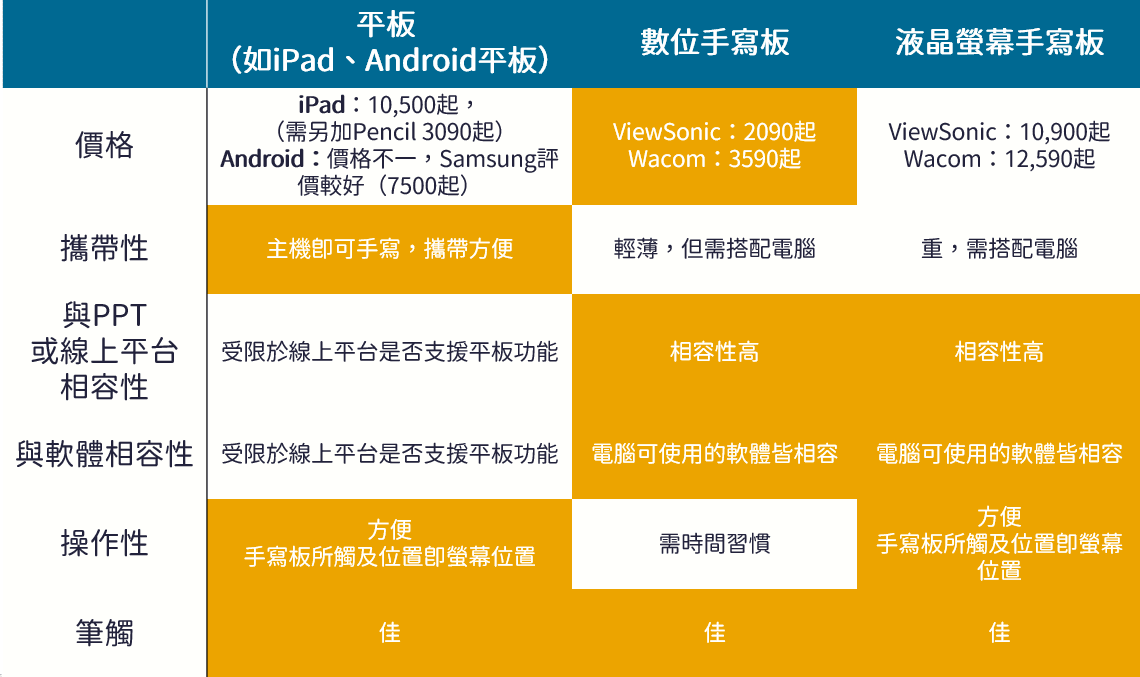
Before diving into each type, here’s a quick comparison table of the three options. I’m leaving out tablets that support writing but have no pressure sensitivity, and I’m skipping e-ink tablets due to their high latency. The brands I’ve included are ones I’ve personally used or had experience with — mostly the well-known ones. Feel free to recommend others in the comments!
Tablets for Teaching: iPad & Android Tablets
Best for: Higher budget (around NT$10,000 or more), frequent travel, comfortable with platform limitations for online teaching
A lot of people recommend using an iPad or similar tablet for online teaching, and for good reason. The biggest advantage is obvious: the tablet is the computer — no separate machine needed, which also means it’s slim, light, and portable enough to take anywhere. The trade-off is the same thing: because the tablet is the platform, many online teaching tools and software don’t have equivalently functional mobile versions. Some are fine; others are a frustratingly degraded experience. I personally use PowerPoint for teaching, and even with a paid version on iPad, the compatibility has never felt quite right. That’s something to investigate before committing.
On the Android vs. iOS question — I’ve used both. I’m a committed Android user when it comes to phones, but I’ll admit the iPad is in a different class. If you prefer Android, the Samsung tablet series has the best reputation. If you’re open to iOS, iPad is the clear winner in the tablet category. And if budget is no object, there’s always the Windows-based Surface XD (I’d love one of those one day)
Price-wise, Android tablets tend to be less expensive than the iPad lineup. If you work in education, Apple offers an education discount. Either way, don’t forget to budget separately for the stylus — it adds up quickly T_T
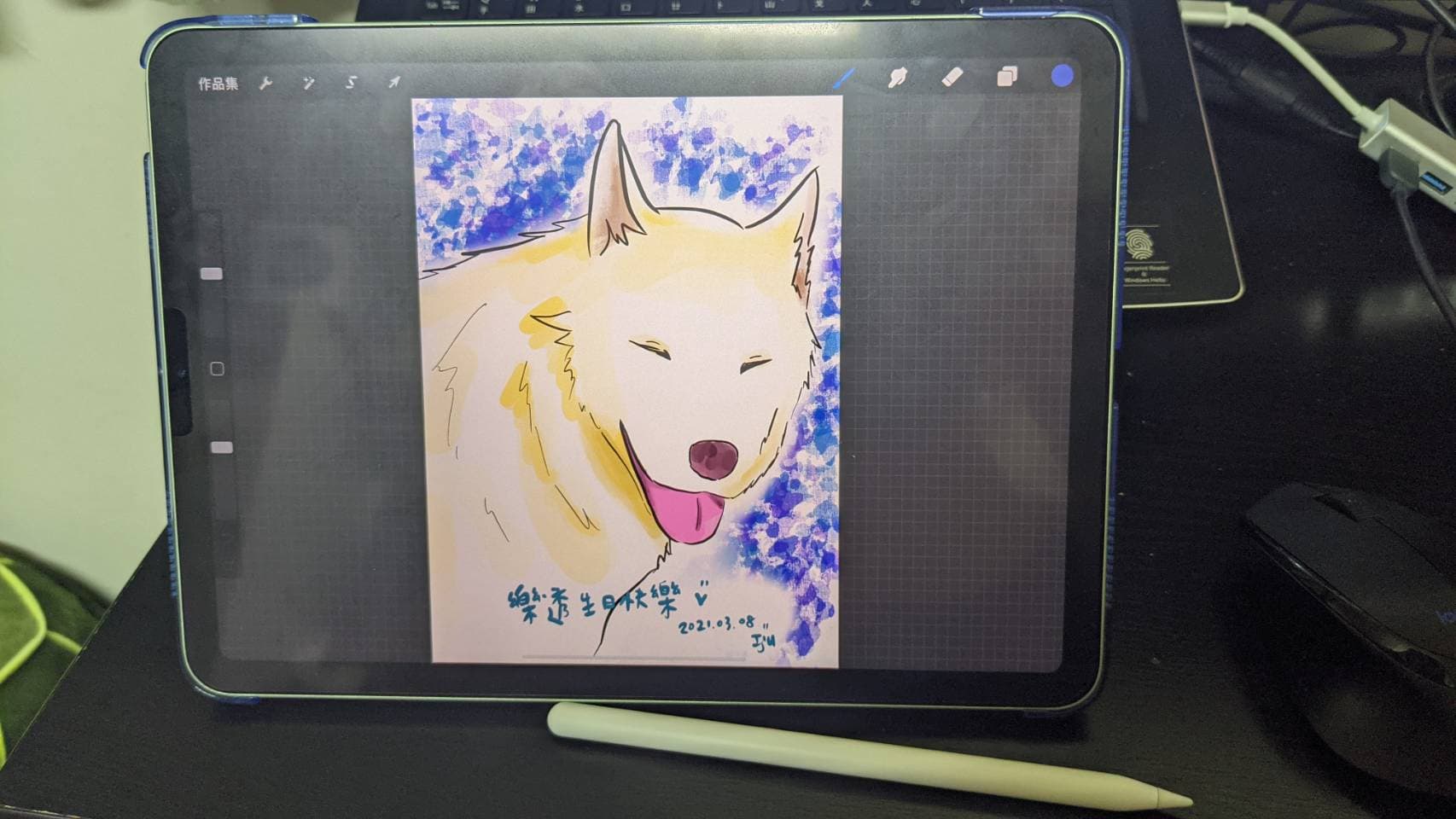
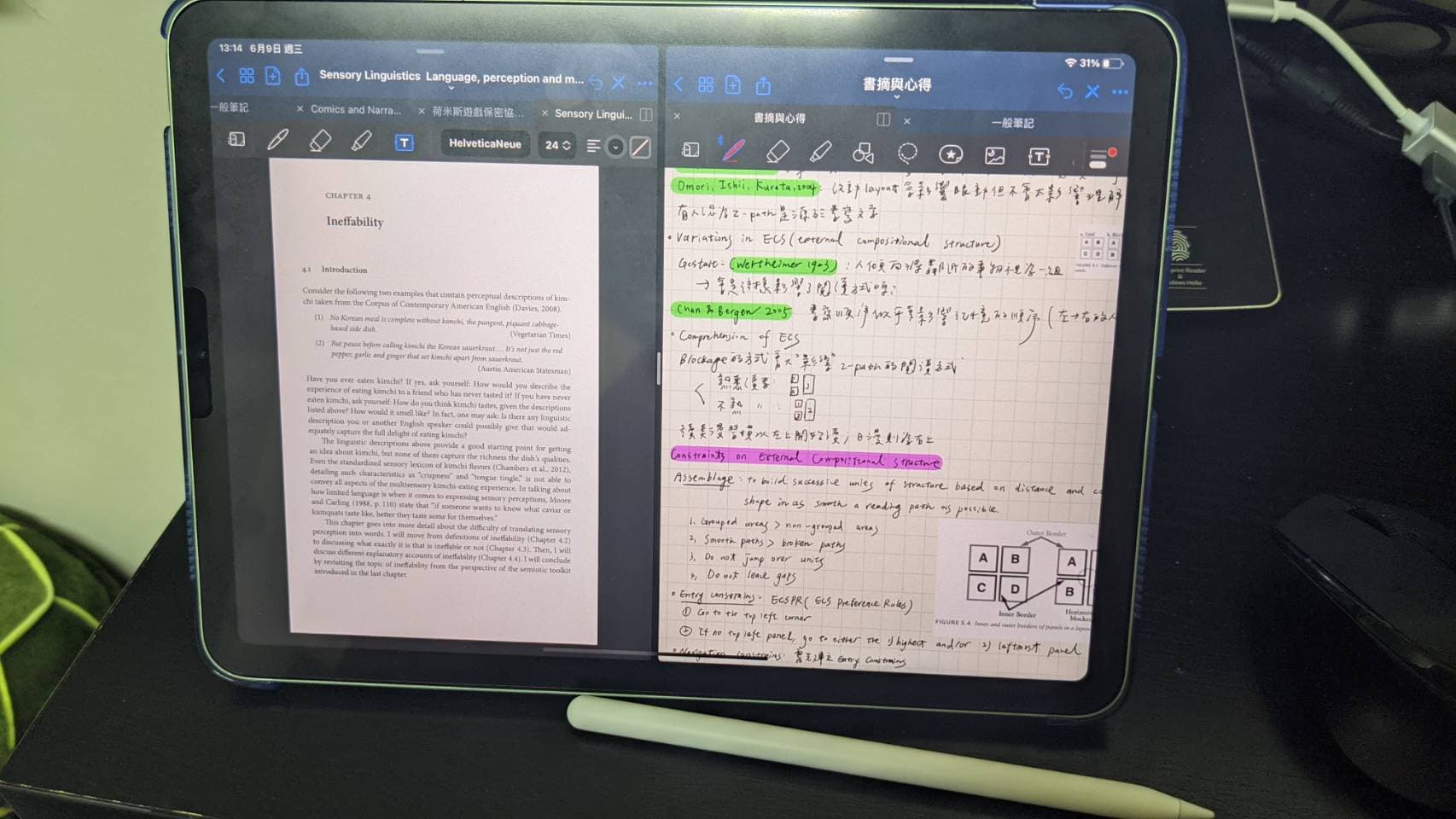
I went with the iPad Air. I spent a long time deciding between the Air and the Pro, but when I explained my use case to the Apple Store staff — occasional drawing, note-taking, reading papers — they pointed me straight to the Air. In practice, the Air has been more than enough for everything I need day-to-day. Unless you’re editing video or audio, or doing highly detailed illustration work, you probably don’t need to go up to the Pro.
If you want more of a paper-like writing experience, I put a matte screen protector on my iPad — it genuinely feels like writing on paper.
Tablets for Teaching: Graphic Tablets (No Screen)
Best for: Lower to mid budget (NT$3,000–10,000), comfortable with tech, primarily computer-based teaching setup
This category refers to tablets without an LCD screen — as shown in the image below. They connect to your computer via a single USB port.
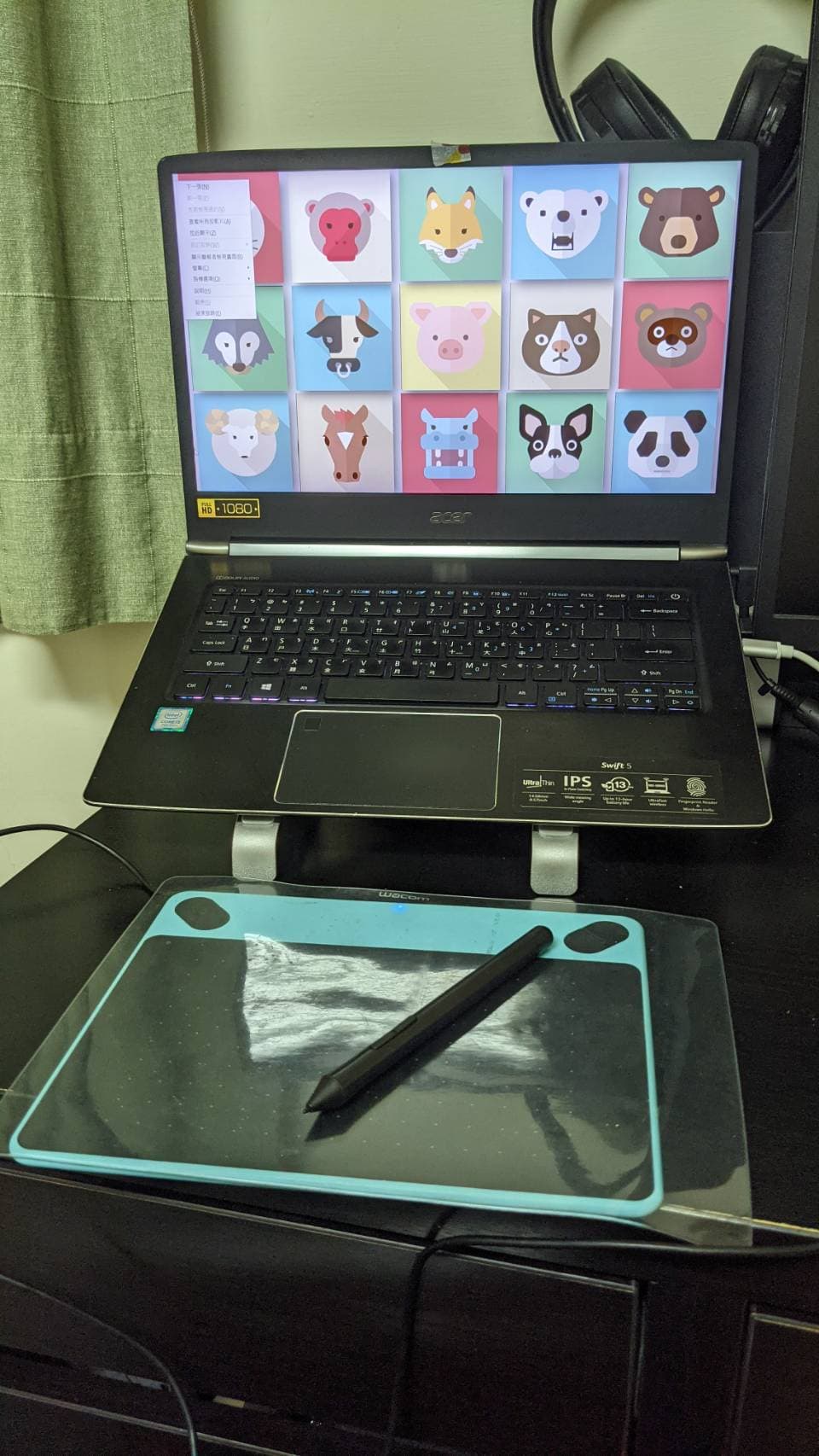
Because these require a computer connection, they’re less portable than a tablet — but that connection also means software compatibility is essentially a non-issue. They’re actually quite light; I’ve taken mine back to my hometown for extended stays without thinking twice.
As you can see, there’s no display — so you have to develop a feel for where the stylus maps to on screen, which means there’s a learning curve when you first start using one. But it becomes second nature with time; I eventually reached the point where I didn’t need to look at the tablet at all.
The undisputed name in this category is Wacom. Anyone who’s gotten into digital art has almost certainly started with a Wacom tablet. I’ve owned two: an older Bamboo, and an Intuos I bought in Japan three or four years ago (the one in the photo). It cost around NT$3,000 and has excellent pen feel — it’s what I used for all my early digital art (including the wedding invitation design below XD). I was always worried about scratching the surface, so I drew on top of a thin protective sheet — it had absolutely no effect on pen sensitivity, no need to worry.

I recently learned that ViewSonic has released a bamboo-themed series as well — I’ve seen a number of people recommending it and the online reviews seem positive. I haven’t personally tried it, but I’d love to hear from anyone who has XD
Tablets for Teaching: LCD Writing Tablets
Best for: Higher budget (NT$10,000+), less comfortable with tech, primarily computer-based teaching setup, high demand for handwriting or drawing precision
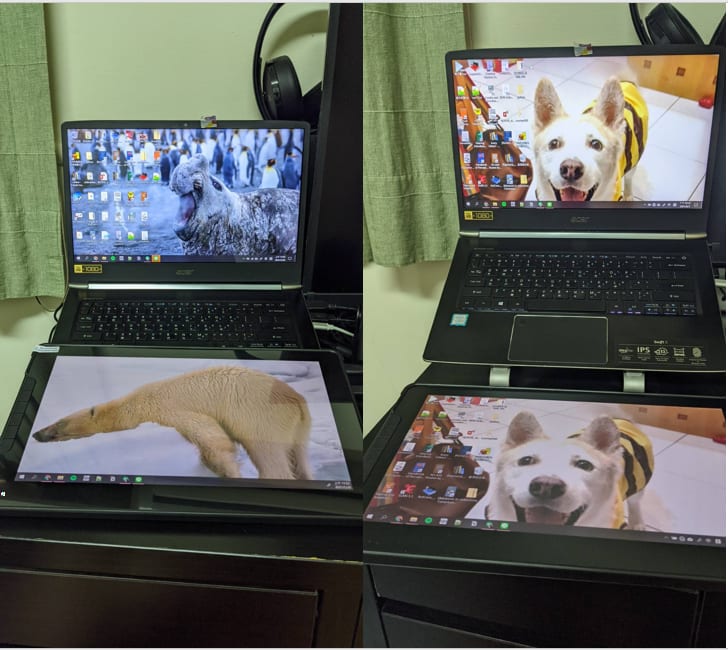
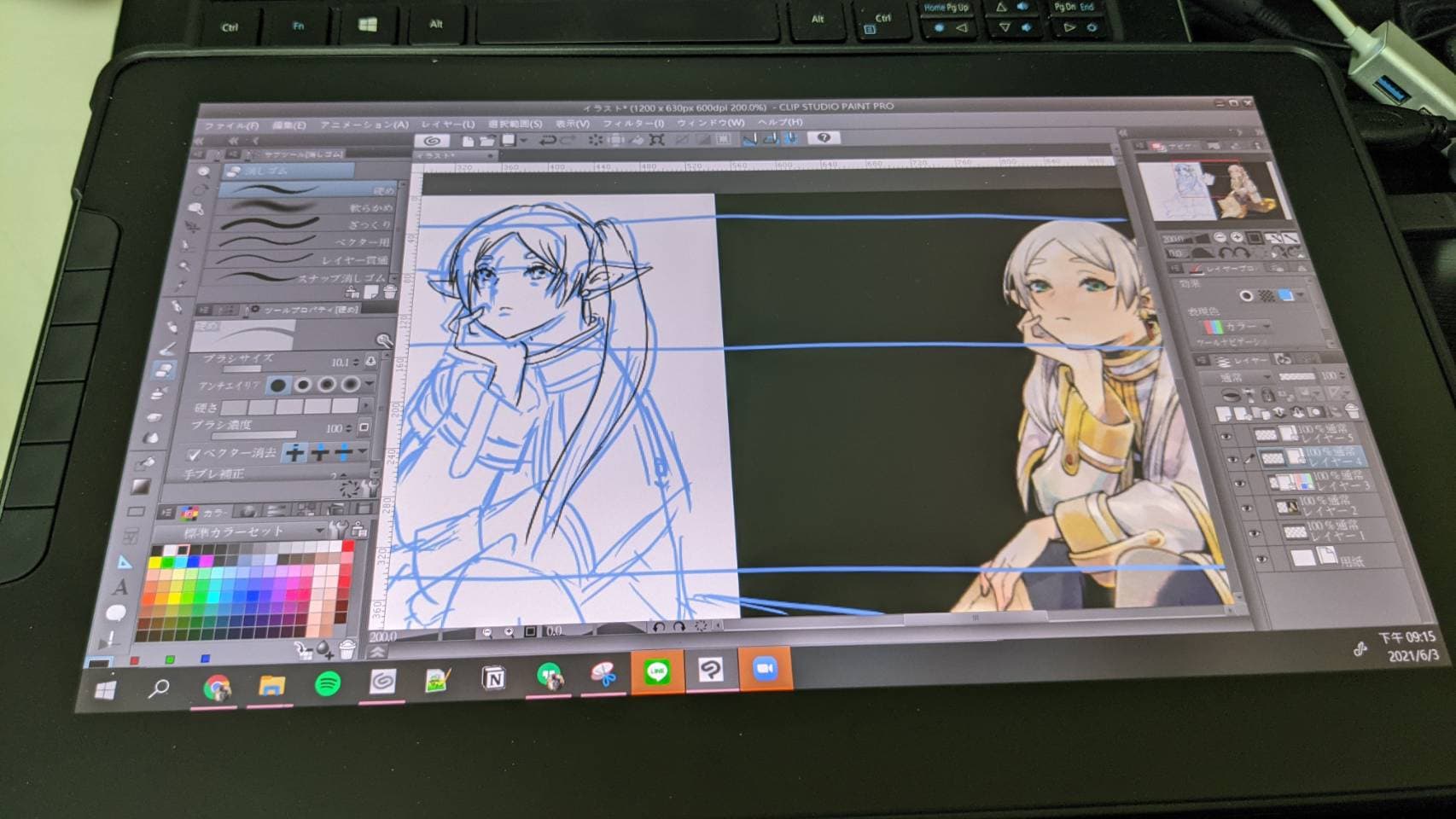
The LCD writing tablet is the next step up from the graphic tablet. It connects to your computer externally and functions as a second monitor — you write directly on the screen. It requires both an HDMI connection and a USB port. It’s fairly heavy, so portability is a real trade-off — but in terms of precision, it far surpasses a graphic tablet. No learning curve at all — it’s exactly like writing on a screen. You can also use it as a second monitor for a dual-screen setup.
I already had an iPad, but honestly it came down to habit — I just never got comfortable with the drawing apps on iOS. So I watched the LCD tablet market for a long time before finally pulling the trigger. Wacom was too expensive T_T — but thankfully ViewSonic came through XD (I thought they only made monitors — didn’t realize they made tablets too!) I went with the ViewSonic ID1330, and the moment it arrived I immediately put the Wacom Intuos away XD The difference in feel is just incomparable. For online teaching, I now use it in mirrored display mode — it makes everything flow so smoothly. Drawing, writing, annotating on the fly — all completely natural XD
If you have the budget, I’d genuinely recommend getting an LCD writing tablet.

Wrapping Up
For online teaching specifically, I’d recommend a graphic tablet or LCD writing tablet over a regular tablet — mainly because you won’t run into software or platform compatibility issues.
If you’re still on the fence, here are some questions to help guide your decision:
- What’s the primary purpose? If it’s mainly for online teaching, go with a graphic tablet or LCD writing tablet. If you need multi-purpose functionality, leave a comment about your specific needs and I can share more thoughts.
- What’s your budget? If it’s limited, go with a graphic tablet (tablets and LCD writing tablets both tend to run NT$10,000+ once you add in accessories).
- How comfortable are you with tech? If less so, an LCD writing tablet saves you the learning curve.
- Do you work on the go frequently? If yes, a tablet is the more portable choice.
I hope this was helpful! Feel free to leave a comment anytime with questions or to share your thoughts.
Thanks for reading :D
If you enjoyed this post, feel free to click the coffee button in the lower right to support us and give Lottery a can 🐾
Comments